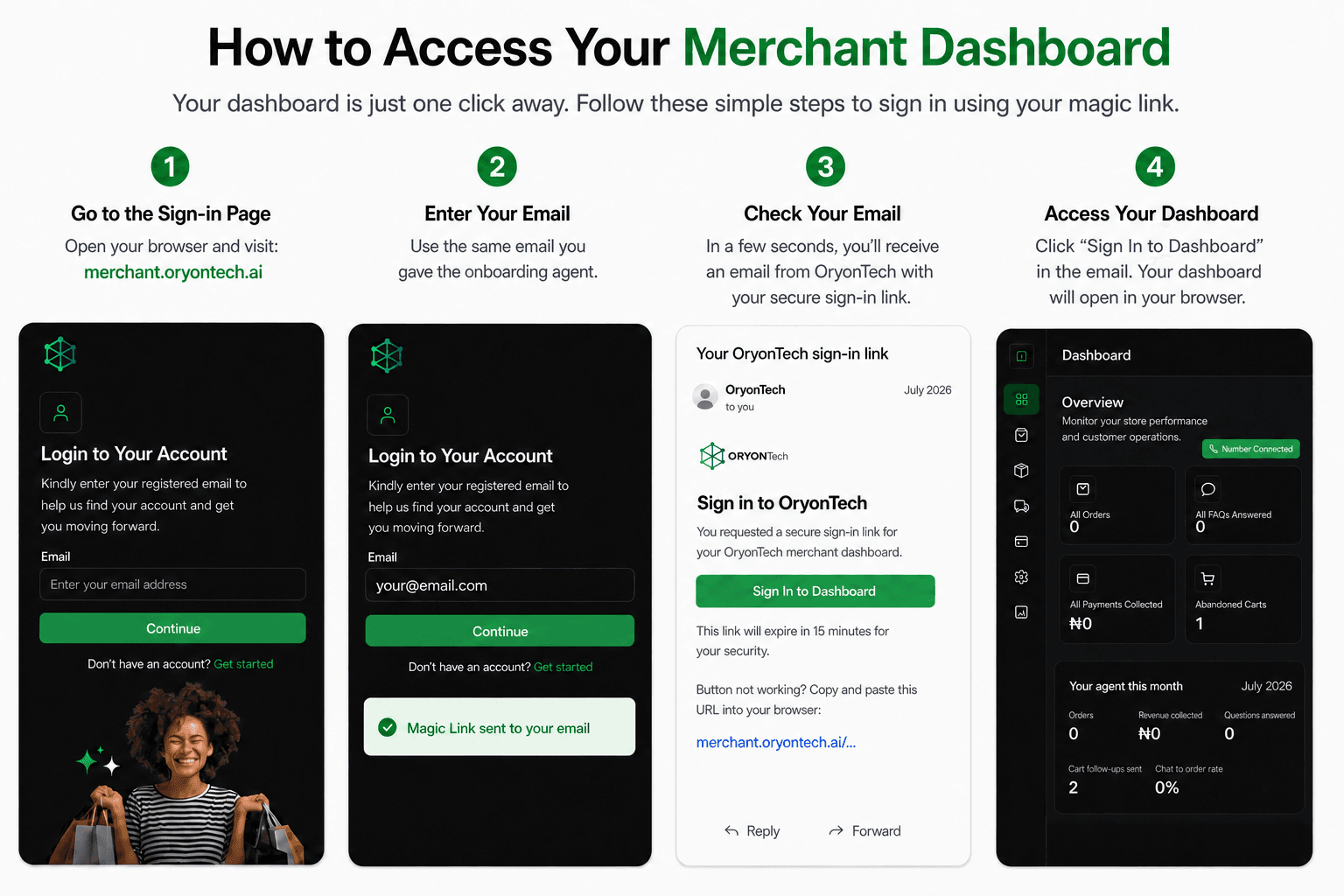
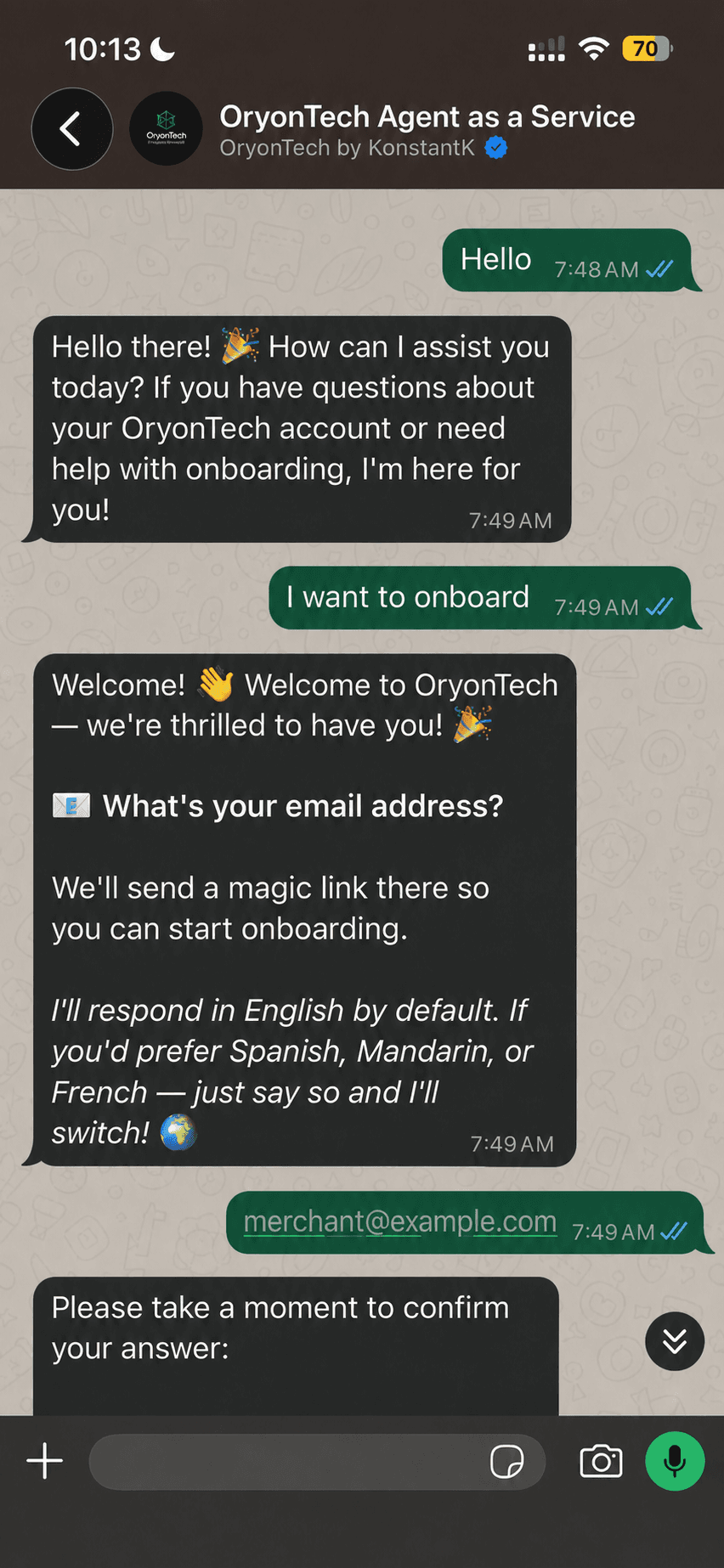
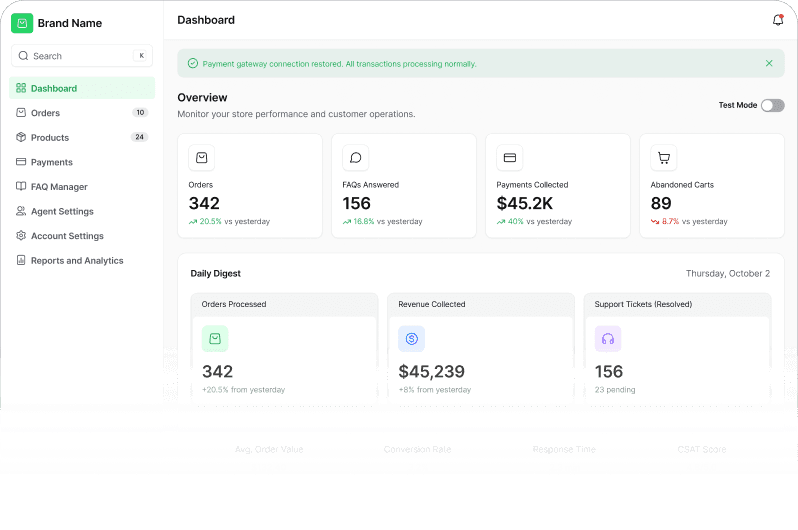
Start With Dashboard
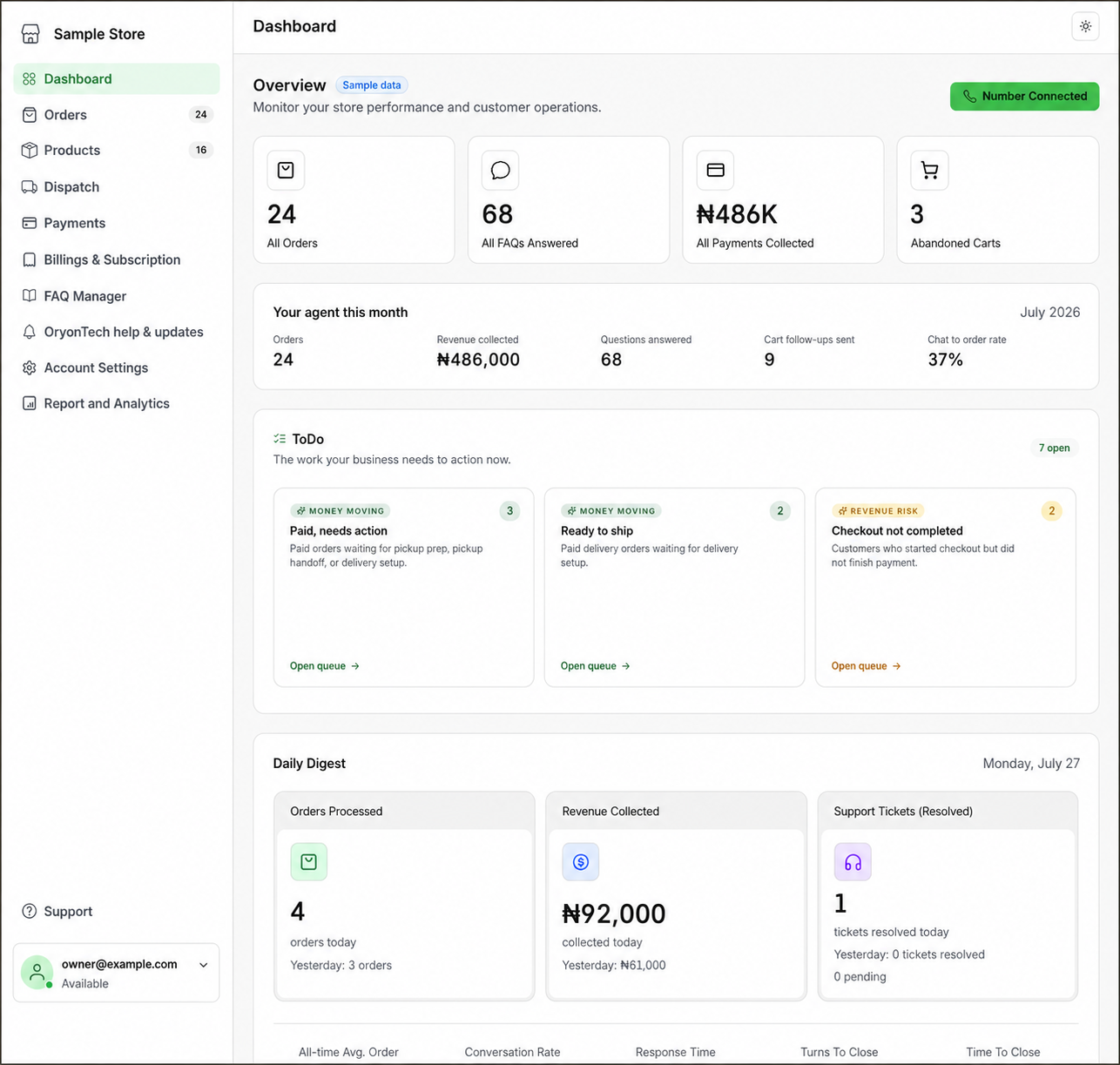
Dashboard is your operating overview. It brings together orders, revenue collected, customer questions answered, cart follow-ups, conversion signals, setup tasks, and items that need attention.
Use the action cards instead of treating every order alike. A paid order waiting for fulfillment needs a different response from a customer who started checkout but has not paid.
Daily Work Areas
Orders contains the order record and the related customer conversation. Dispatch focuses on pickup and delivery work. Products is your customer-facing catalog, while FAQ Manager stores approved answers to repeat questions.
Use the product and FAQ guide when you are preparing what Agent as a Service is allowed to sell and explain. Use the order and fulfilment guide when a customer has completed checkout.
- Orders: review carts and paid orders, search, filter, export, and take the next fulfillment action.
- Products: add, edit, activate, archive, restore, and monitor simple or variant products.
- Dispatch: track delivery work, update delivery states, and resolve delivery issues.
- FAQ Manager: create, edit, search, delete, and restore previous versions of approved answers.
Money and Performance
Payments shows customer-payment records connected to commerce orders. Billings & Subscription shows your OryonTech plan, usage, invoices, add-ons, and billing actions. These are different money views and should not be read as the same thing.
Report and Analytics turns paid-order and operating data into revenue, orders, average order value, time-to-close, product, stock, payment, and escalation views.
Help, Settings, and Human Handoff
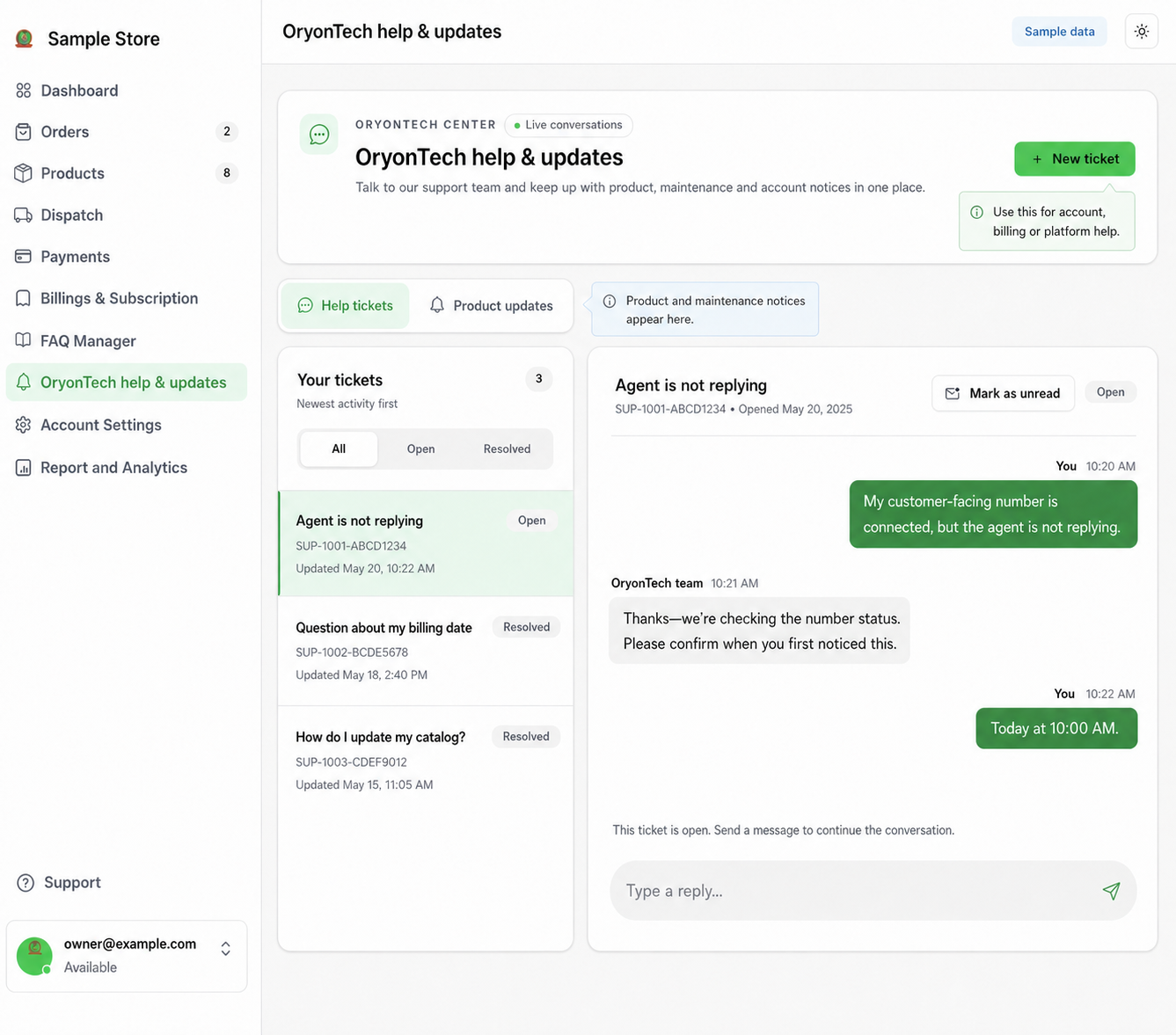
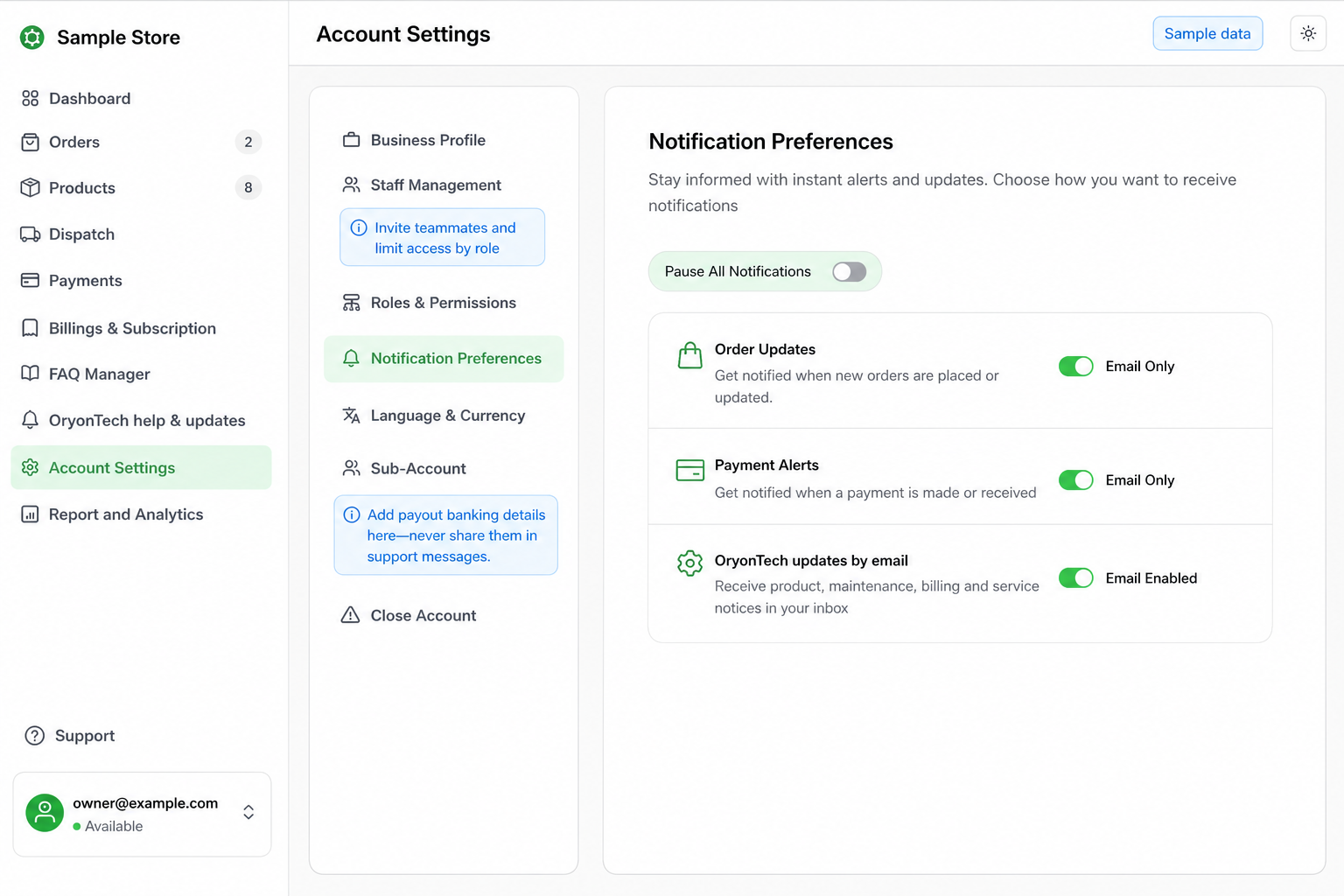
OryonTech Help & Updates is where you contact the OryonTech team and read product, maintenance, billing, or general updates. Account Settings is where an owner manages the business profile, staff, permissions, notification preferences, language, currency, payout sub-account, and account closure.
The Support item at the bottom of the navigation is different: it contains customer conversations that your WhatsApp agent handed to a person in your business.
Read the help-path guide before opening a conversation if you are unsure whether the issue belongs with OryonTech or with your own customer-support team.
Owner and Staff Access Are Different
Owners can see financial, billing, account, and analytics areas. Staff access is intentionally narrower and focuses on day-to-day operating work such as orders, products, dispatch, FAQs, help, and customer handoffs.
If a staff member cannot see an owner-only page, that is usually a permission boundary rather than missing data.
Use Dashboard to decide what needs attention, then move into the specialist page that owns the action.
Ready to open your dashboard?
Review your current operating signals and move into the right work area.