Start Onboarding in WhatsApp
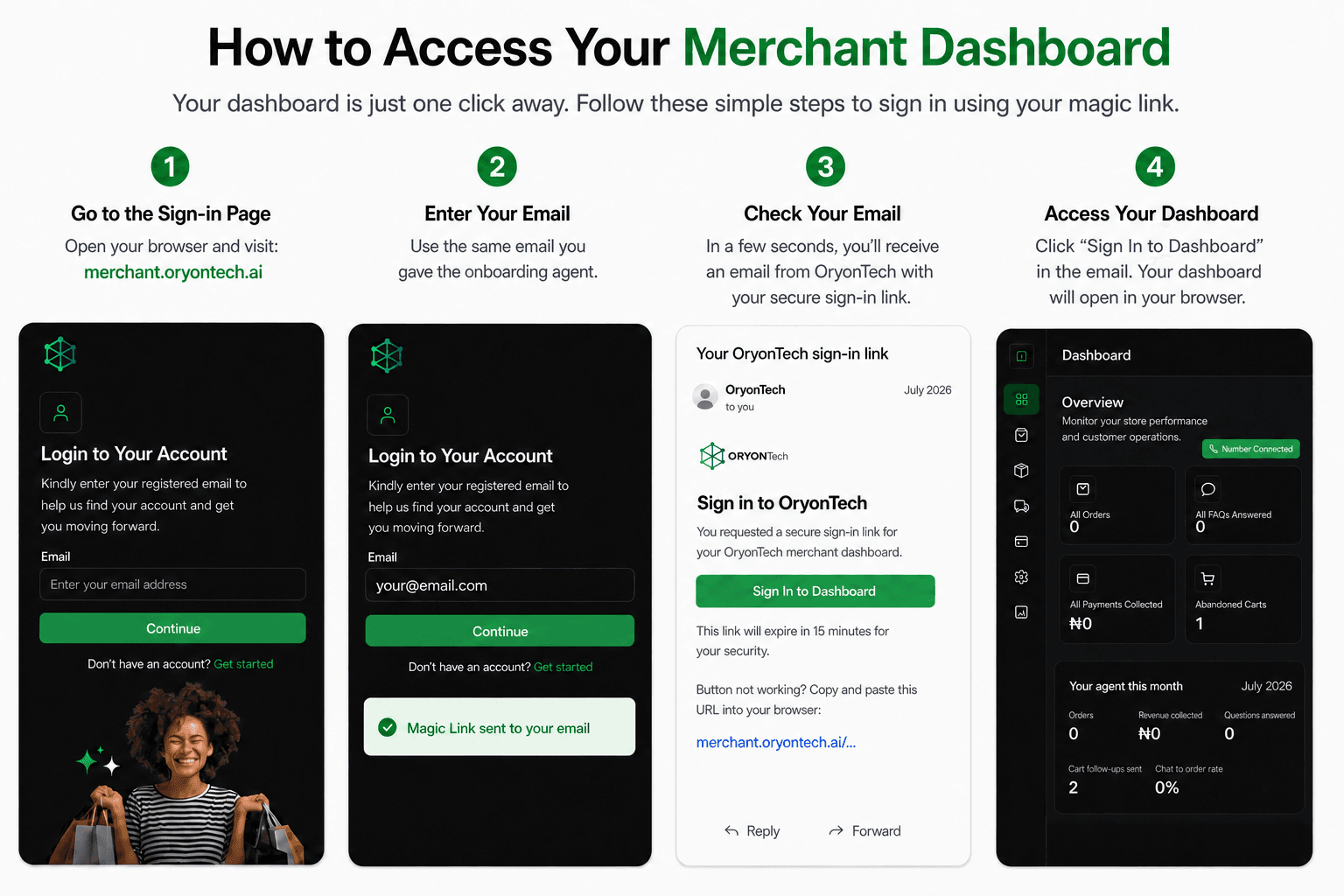
Open merchant.oryontech.ai. If you do not have an account yet, select Get started below the sign-in form. Your device will open WhatsApp with a chat ready for the OryonTech onboarding agent.
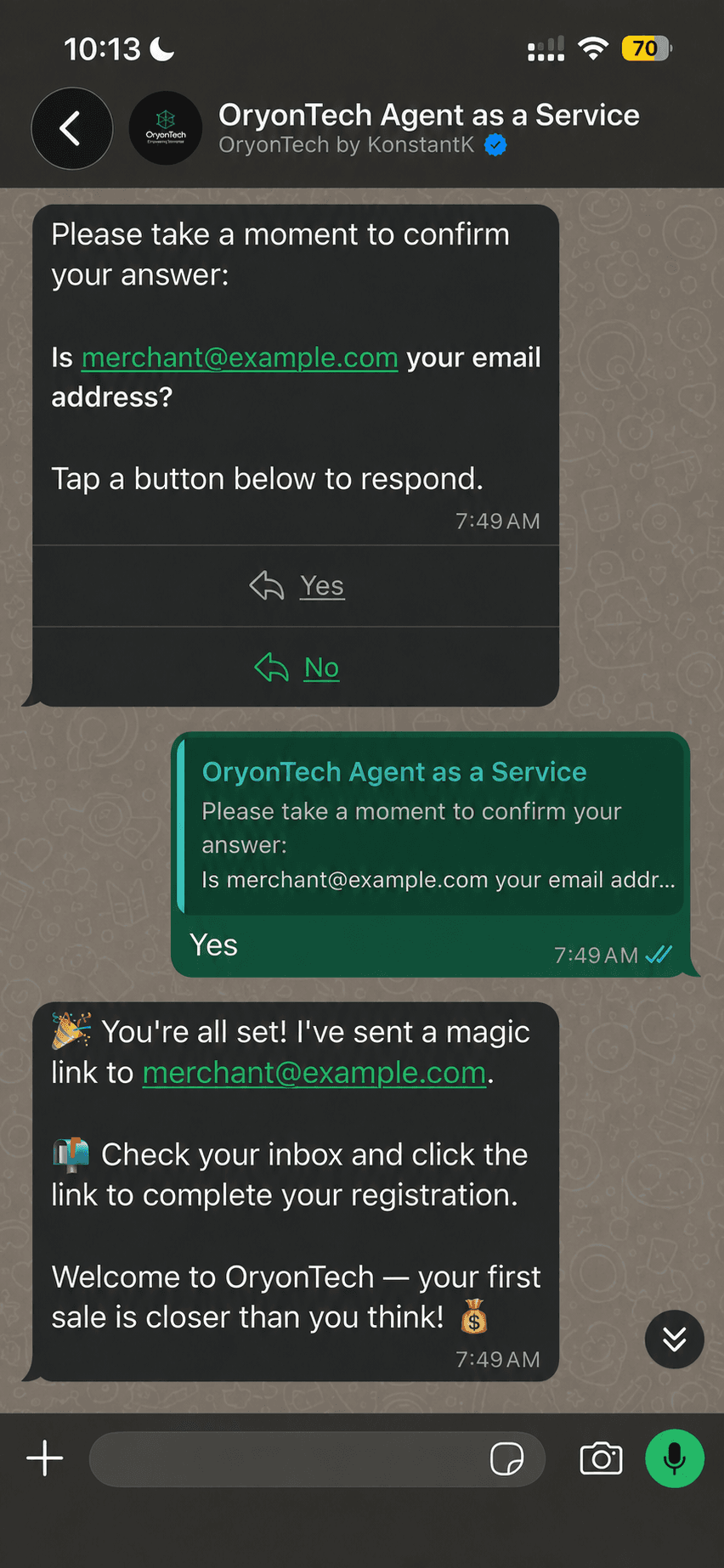
Tell the agent that you want to onboard. The agent will ask for your email address and then ask you to confirm it. Check the address carefully and select Yes only when it is correct.
Open the Registration Link
Check the inbox for the email address you confirmed in WhatsApp and open the OryonTech magic link. The link opens the merchant setup flow in your browser.
Use this link only for your own account. Do not forward it or share it with another person. If it expires, return to merchant.oryontech.ai and request a new link with the same email address.
Get Help During Onboarding
You can ask the OryonTech onboarding agent questions at any point. It can explain what to prepare, point you to the relevant step-by-step guide, and show your saved onboarding status and what is still left to do.
If you need a person, say “I need to speak to someone” and add a short reason. The agent will register a callback request and give you a reference. Keep that reference; the OryonTech team will contact you on the same WhatsApp number as soon as possible.
Use the link below to open the official OryonTech onboarding chat in WhatsApp.
- Ask what you should have ready for the current step.
- Ask which onboarding step is saved and what remains.
- Ask for the most relevant merchant guide.
- Request a callback and briefly explain what you need help with.
What to Have Ready
A few details prepared in advance will make onboarding much easier. Use the same email address throughout the process so your invitation, saved progress, and dashboard stay connected to one account.
- Your legal or customer-facing business name, business type, registration number, phone number, email, and address.
- One clear business document in PDF, JPG, or PNG format, no larger than 5 MB.
- An optional business logo in PNG, JPG, or WebP format, no larger than 5 MB. OryonTech resizes valid images automatically.
- A decision about your customer-facing number: use an OryonTech-provided number, connect a new unused number you own, or request help moving an existing WhatsApp number.
- Access to a Facebook account that can create or manage your business’s Meta Business Portfolio if your number path asks you to connect through Meta.
- Your bank name and account number for payout setup.
Step 1: Add Your Business Information
Complete every required business field and upload one readable business document. Select the document type that best matches the file you are providing.
Your business logo is optional. You can continue without it and add or replace it later under Account Settings. A failed optional logo upload should never stop you from completing the rest of the form.
Step 2: Choose Your Customer-Facing WhatsApp Number
The number you use to talk with the OryonTech onboarding agent can remain your normal WhatsApp number. The dedicated customer-facing number used by Agent as a Service is selected separately during setup.
For the current guided flow, choose an OryonTech-provided number or connect a new number you own that is not currently registered on WhatsApp and can receive an SMS or voice OTP.
If you want to move a number that is already active in WhatsApp, WhatsApp Business, or another provider, use the assisted migration route. Do not delete, disconnect, or transfer the number until OryonTech confirms the safe path with you.
If your setup opens a Meta connection window, complete that window in one sitting. Closing it before completion may require reopening only that connection step; your earlier OryonTech setup remains saved.
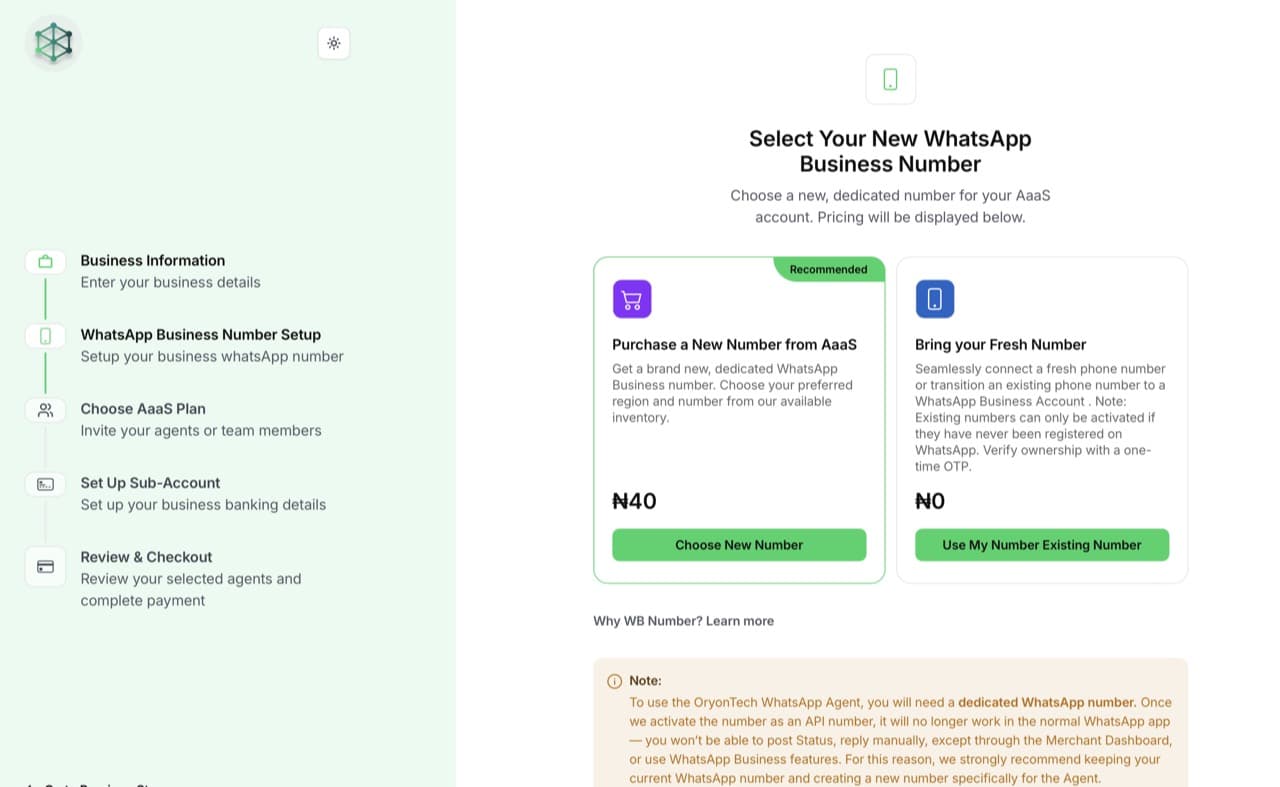
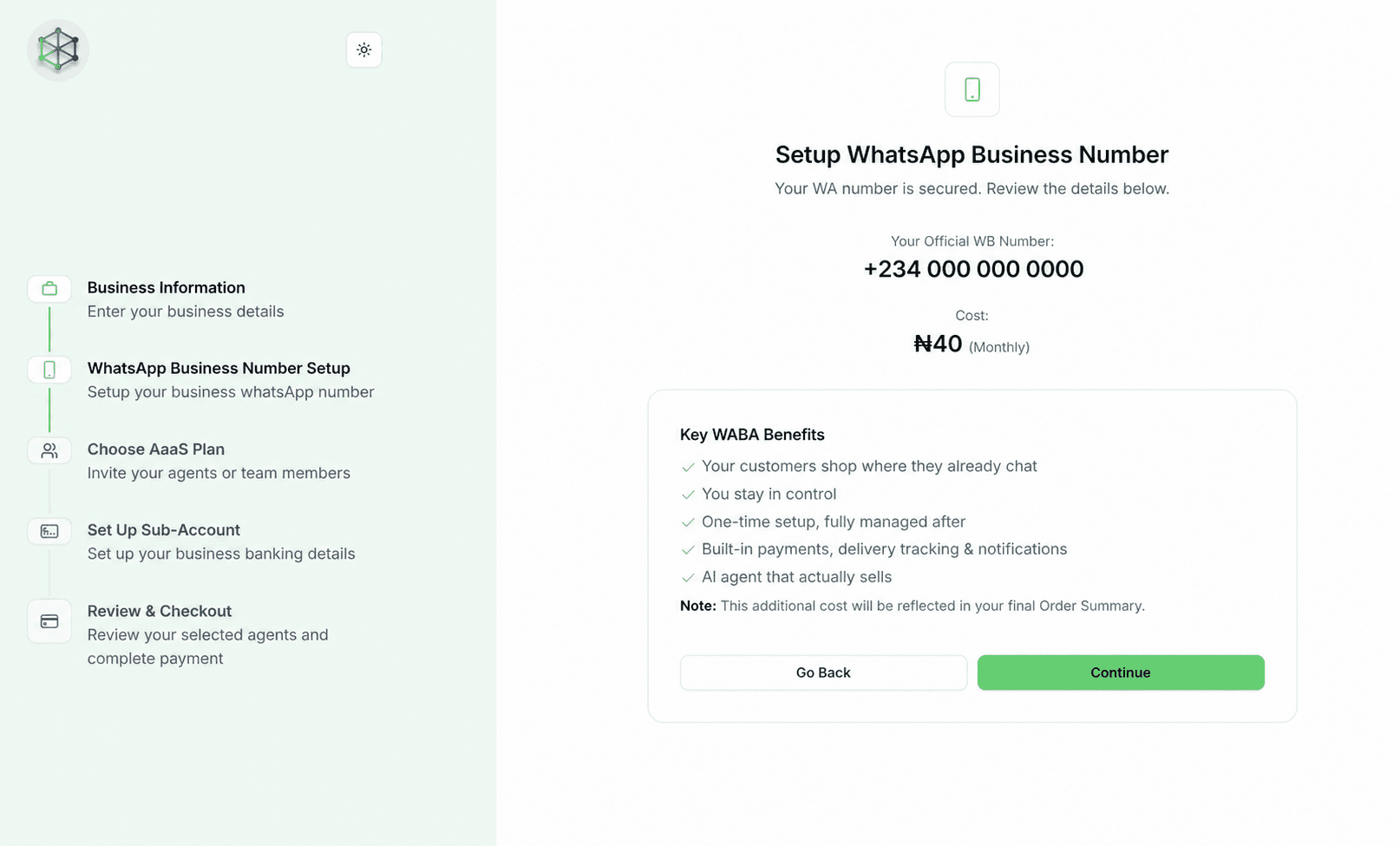
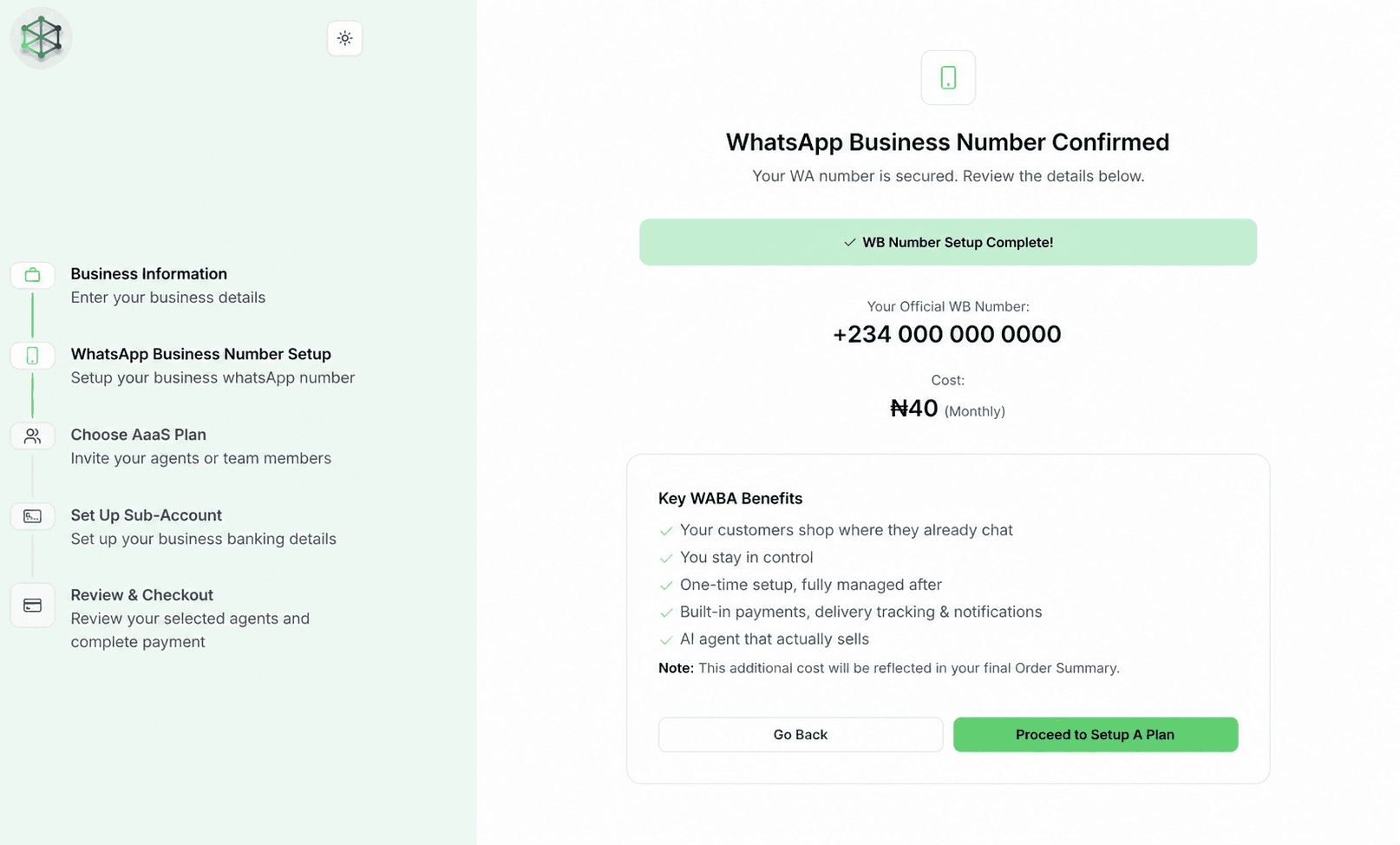
Steps 3 to 5: Plan, Payout, and Checkout
Choose the plan and add-ons shown for your account. Then select your bank and enter the account number that should receive customer-payment settlements. OryonTech resolves the account name so you can confirm it before continuing.
On the final screen, review the selected plan, number, add-ons, and amount before proceeding to the secure checkout. If the screen says a previous step is incomplete, return to that named step instead of creating a second account.
Understand Verification, Test Mode, and Setup Progress
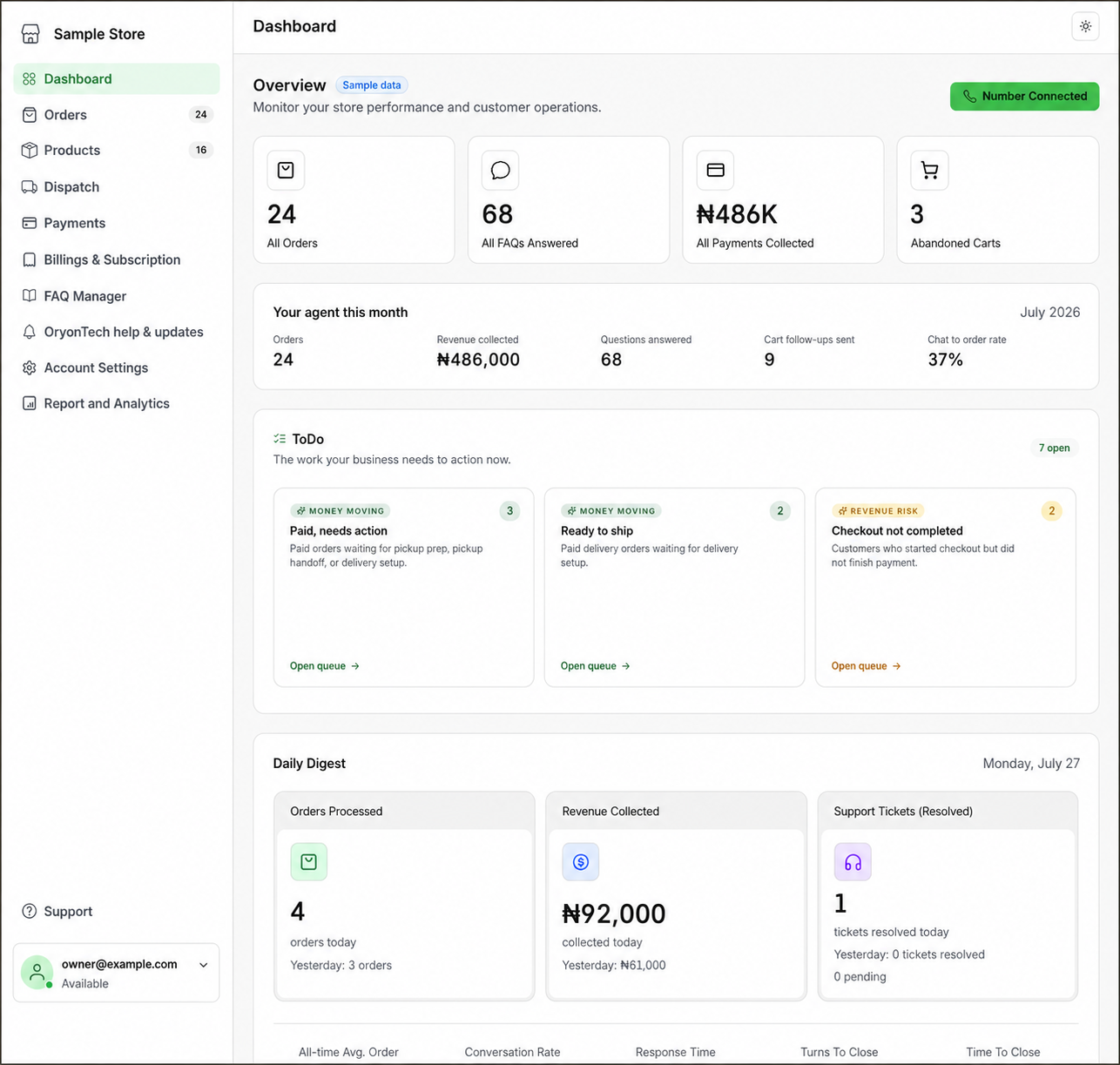
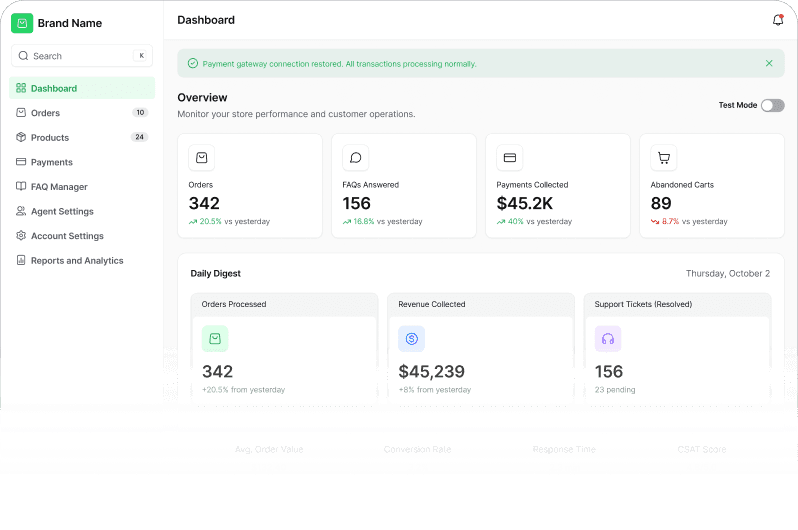
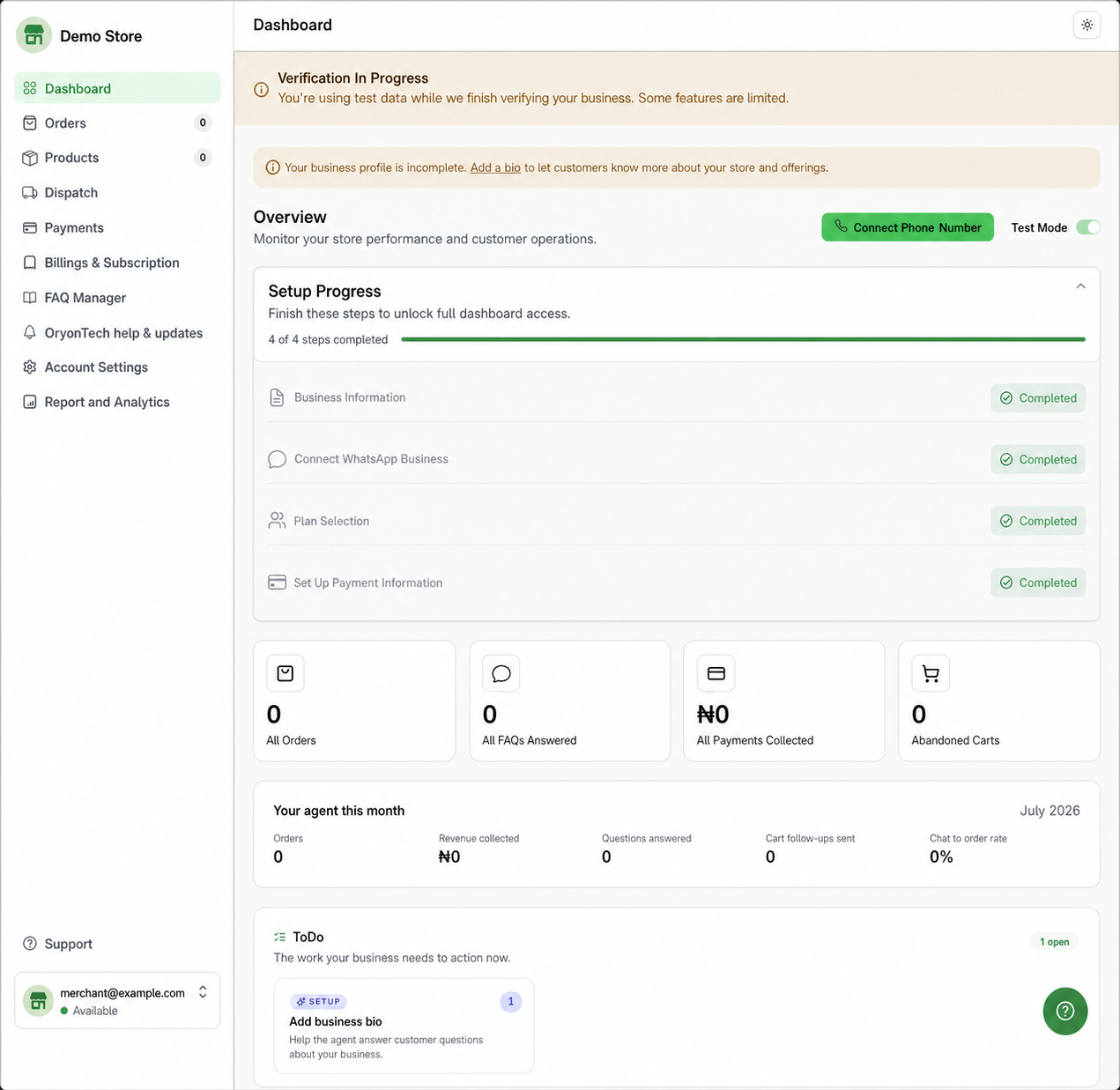
If your dashboard says Verification in progress, your saved setup is being reviewed and the account is not live yet. The Test Mode label and verification banner mean the dashboard may use test data while OryonTech completes the remaining checks.
Setup Progress tracks the onboarding steps you have saved. Seeing 4 of 4 completed does not by itself mean verification, number activation, or go-live is complete.
Use Connect Phone Number when the dashboard says your customer-facing number still needs attention. Use the To Do section for any other action assigned to your business, such as adding the business information your agent needs to answer customers accurately.
Do not create a second account when one of these items is pending. Ask the onboarding agent “What is my account status?” for the saved step and remaining actions. If you can already sign in and need account help, open OryonTech Help & Updates in the dashboard.
- Verification in progress: OryonTech is still completing account checks.
- Test Mode: the visible activity is not your live customer operation.
- Setup Progress: completed form steps, not a final go-live confirmation.
- Connect Phone Number: continue the saved customer-facing number path.
- To Do: complete the next action assigned to your business.
Resume an Unfinished Onboarding
If onboarding stops halfway, return to your WhatsApp conversation with the OryonTech onboarding agent. Send “Continue onboarding” or “Pick up where I left off.” You do not need to create another account or repeat the steps you already completed.
The agent will help you request a fresh magic link using the same registered email address. Open the new link and OryonTech will take you to the first incomplete saved step so you can continue from there.
Magic links are time-limited for security. If a link has expired, ask the onboarding agent for another one instead of restarting the registration process.
Your OryonTech progress and an unfinished Meta connection window are different. OryonTech saves completed setup steps, but a Meta window closed before completion may need to be reopened.
Once onboarding and payment confirmation are complete, use merchant.oryontech.ai to sign in to your dashboard with the same registered email address.
If you are still onboarding and the same step keeps returning, message the OryonTech onboarding agent and explain the step you see. Once you can sign in, use OryonTech Help & Updates for account or dashboard support. Do not send passwords, magic links, or full bank details.
Your OryonTech progress is saved. If a Meta connection window closes before completion, reopen that connection step. You will not repeat your earlier OryonTech setup.
Ready to start or resume onboarding?
Open the official onboarding chat in WhatsApp. Say “Continue onboarding” and use the same registered email.