Prepare: Start With Reliable Booking Rules
Use Appointments in your merchant dashboard to define what customers can book, when your business is available, who can take a booking, and what happens after a customer chooses a time.
The workspace has four views: Calendar for time-based work, List for searchable appointment records, Services for your bookable catalog, and Settings for hours, staff, deposits, cancellation rules, and reminders.
Start with one active service and your working hours. Staff is optional: bookings use the business-level hours until you add people with their own availability.
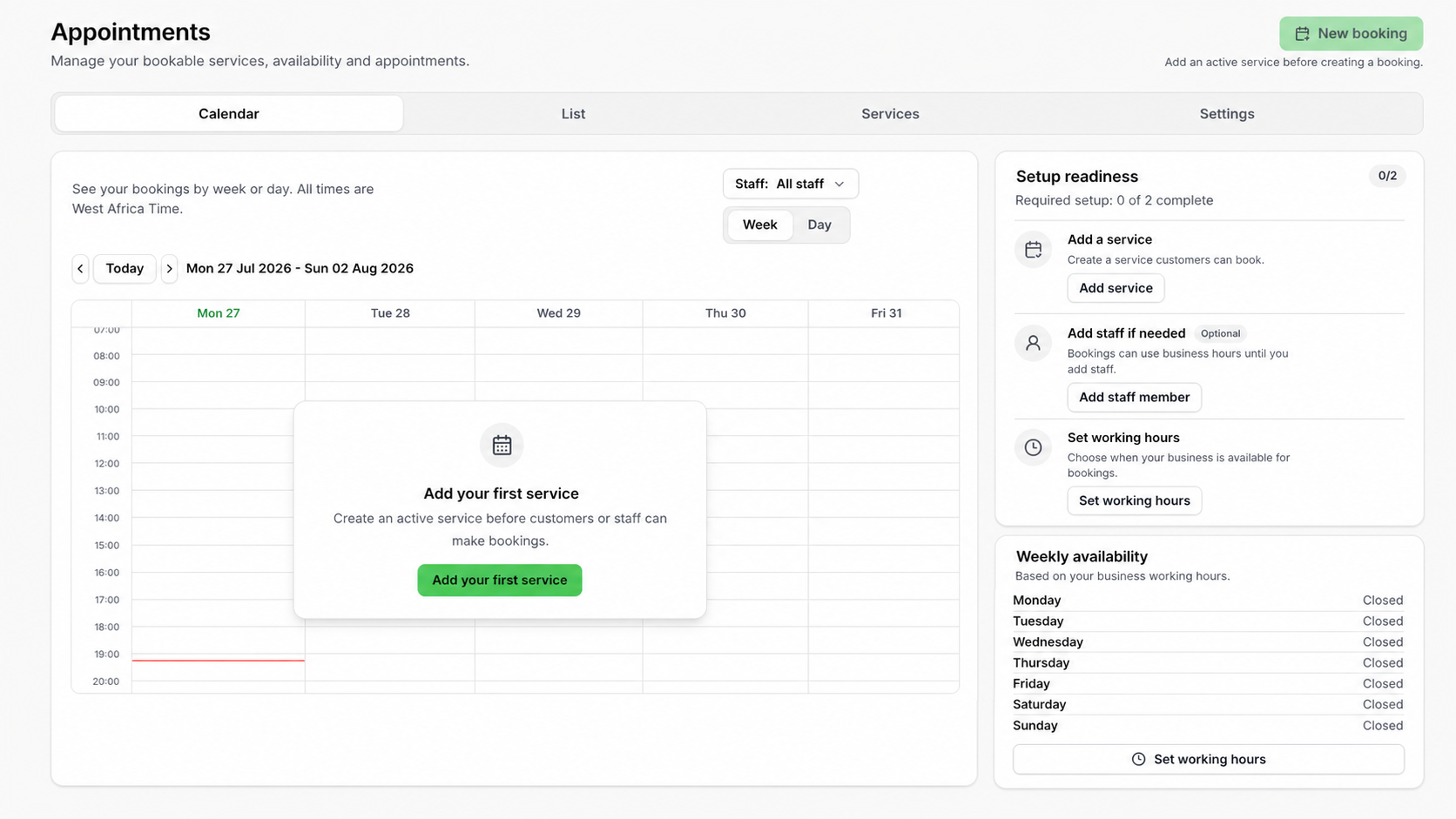
Booking workspace map
Follow the path for what you are doing now
This preview is a guide only. It does not create or change a booking in your account.
Create services, decide when customers can book, and add staff only when you need them.
- 1
Add an active service
Set the service name, duration, price, and optional fixed deposit.
Jump to this step - 2
Set working hours
Choose business hours in 30-minute steps. Split shifts are supported.
Jump to this step - 3
Review booking rules
Confirm your cancellation window, reminders, deposit hold, and deposit policy.
Jump to this step
Prepare Before You Start
Write down the real booking rules your business already follows before entering them in the dashboard. Clear source information helps customers see accurate times and prevents your team from correcting avoidable mistakes later.
- Service name, duration in minutes, price, and whether a fixed deposit is required.
- The days and times your business accepts appointments. Use more than one shift for a split schedule.
- Staff members customers can book with, if staff-specific scheduling is needed.
- How long a customer may cancel before the appointment starts.
- How long a time slot should remain reserved while a deposit is pending.
- When reminders should be sent and the deposit policy customers should read before payment.
Add Your First Service
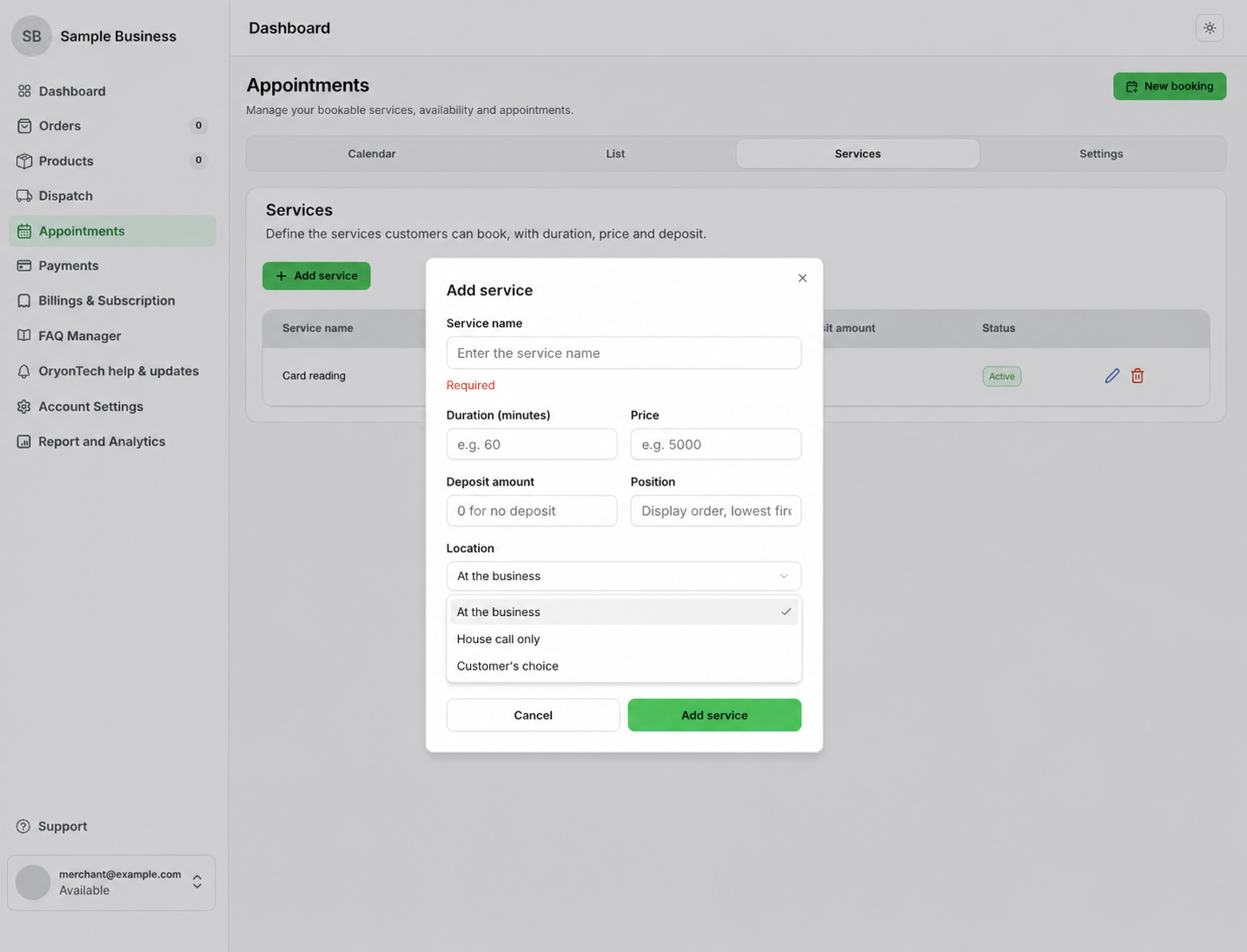
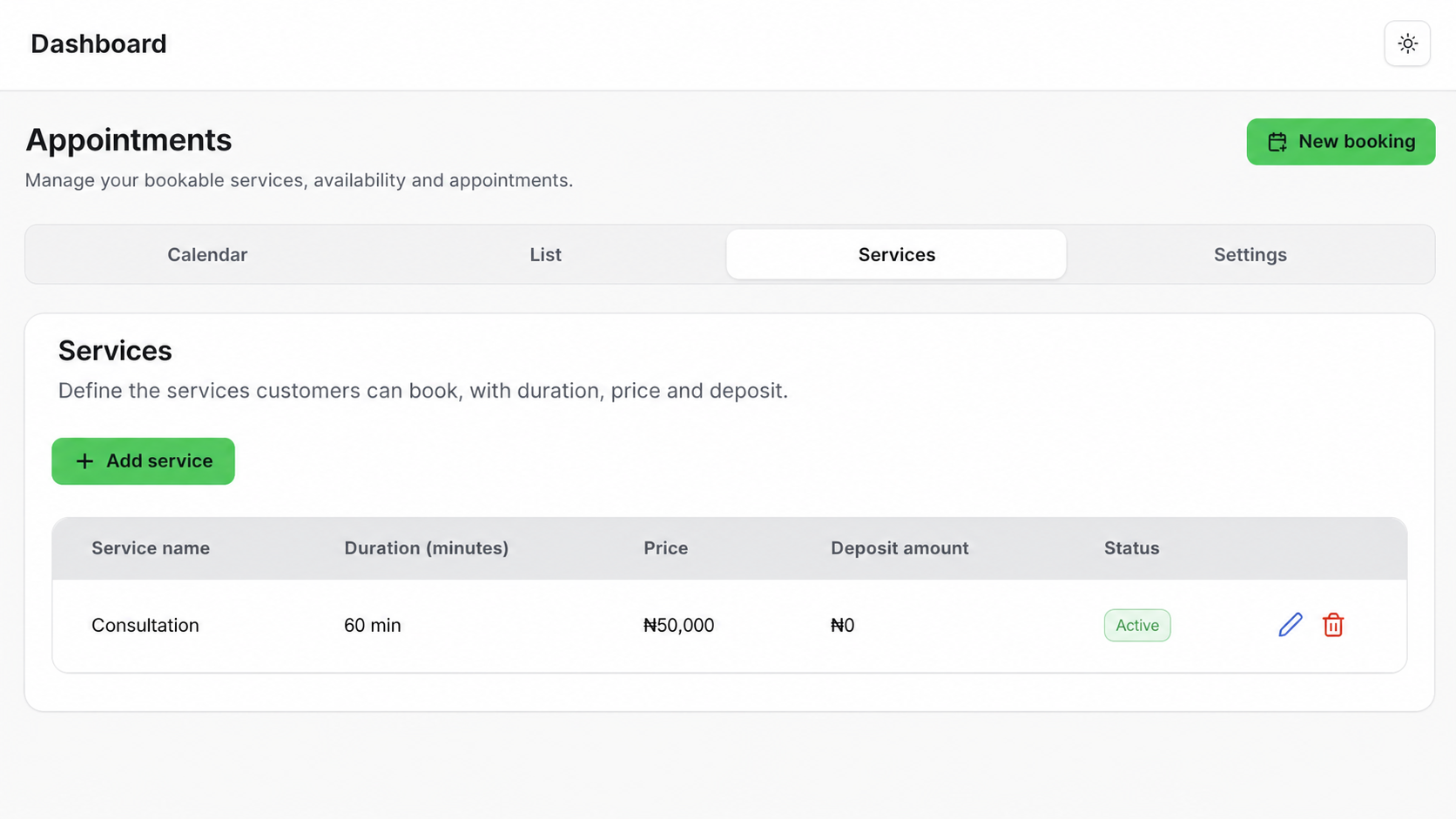
Open Services and select Add service. Use a clear customer-facing service name, then enter the duration, full price, and optional fixed deposit. Enter 0 when the service does not require a deposit.
Duration controls which start times can fit into your working hours. Position controls the order in which services are displayed; lower numbers appear first.
Choose At the business when the customer comes to you, House call only when you travel to the customer, or Customer’s choice when either location can be selected.
Review the values before saving. A service must be active before a customer or staff member can create a booking.
Set Working Hours and Optional Staff
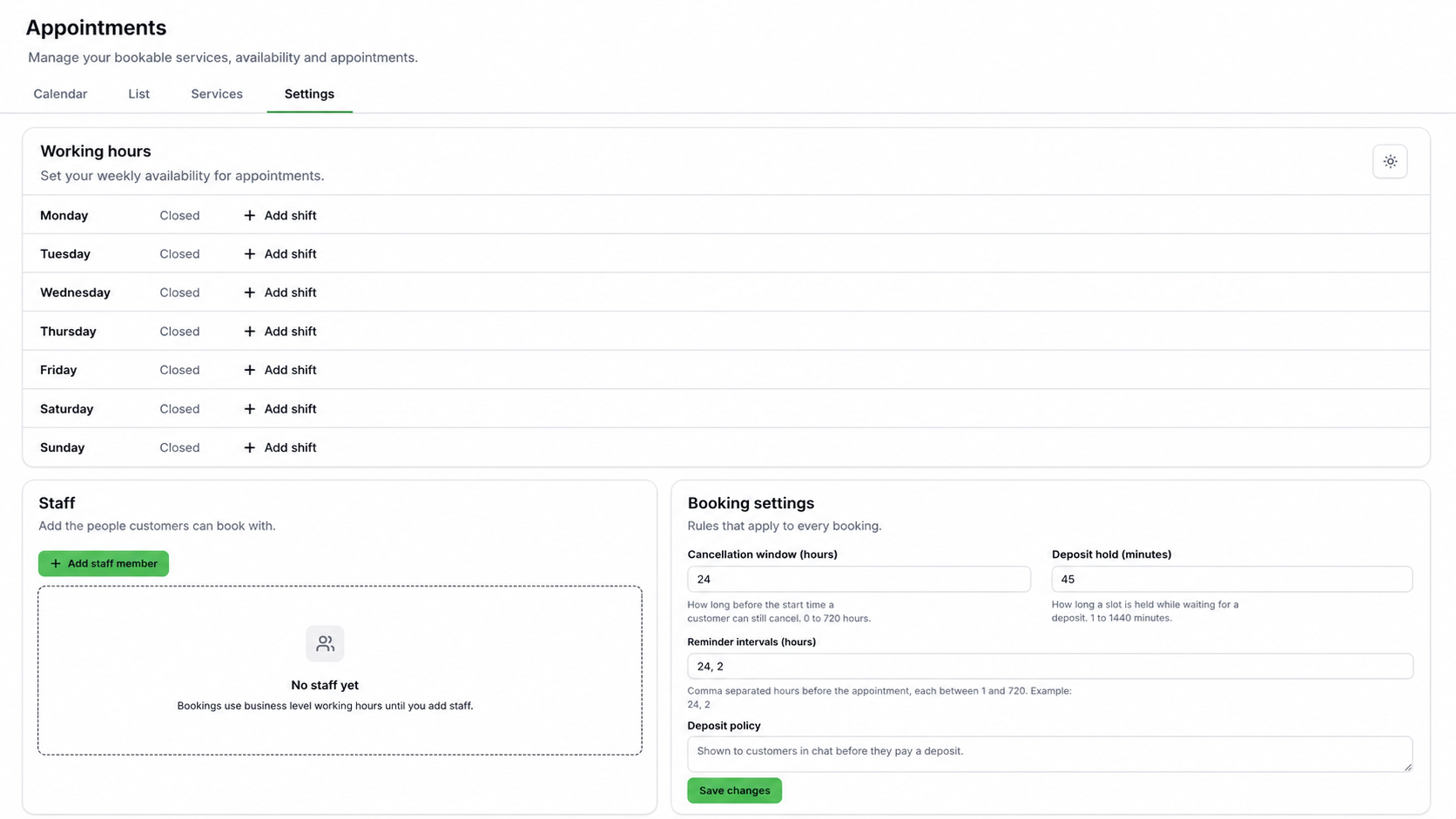
Open Settings and add each day your business accepts appointments. Hours are entered in 30-minute steps. Add a second shift on the same day when your business closes and reopens later.
You do not need staff records to begin. Without staff, bookings use the business working hours. Add staff when customers need to choose a person or when individual schedules differ from the business schedule.
If no time appears for a date, first confirm that the service is active, the business or selected staff member is working, and the full service duration fits before closing time.
Configure Cancellation, Deposit, and Reminder Rules
Use Booking settings to define the rules that apply to every booking. These settings are customer-facing operational rules, so they should match what your team will actually enforce.
Cancellation window is how long before the start time a customer can still cancel. Deposit hold is how long a selected slot remains reserved while payment is pending. Reminder intervals are comma-separated hours before the appointment, such as 24, 2.
Write the deposit policy in plain language. The customer sees it before paying a deposit. Save changes after reviewing all fields.
Receive Bookings Through WhatsApp
Agent as a Service guides the customer through the choices your business has made available. The customer selects an active service, an optional staff member, a date, and one of the available times calculated from your current schedules.
Before confirmation, the customer reviews the booking details and accepts the relevant policy. If the service requires a deposit, the selected slot is held while payment is pending. The appointment becomes confirmed only after the deposit succeeds before that hold expires.
For a zero-deposit service, the appointment can confirm immediately after the customer accepts the booking details. The dashboard remains the operational record for the appointment and its status.
Receive Manual Bookings From Walk-Ins or Calls
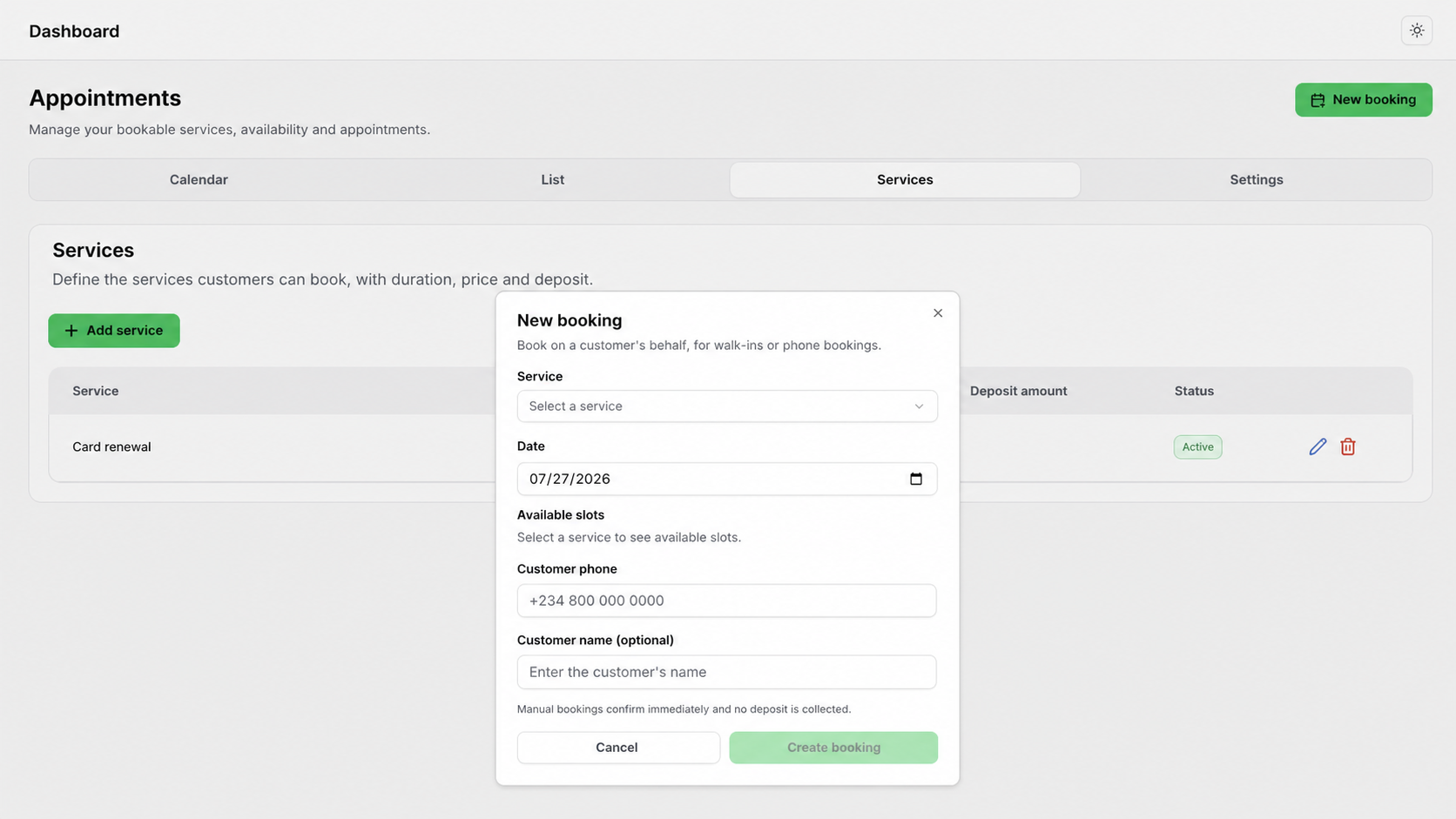
Use New booking when you are recording a booking on a customer’s behalf. Choose the service and date, select an available time, then add the customer’s phone number and name. Both customer fields are required before you can create the booking.
A manual booking confirms immediately and does not collect a deposit. If your business must collect money for a manual booking, handle that payment through your approved payment process and keep the appointment record accurate.
Do not use a manual booking to bypass a customer deposit by accident. It is for walk-ins, phone bookings, and other bookings your team is intentionally entering on the customer’s behalf.
Run the Day in Calendar and List
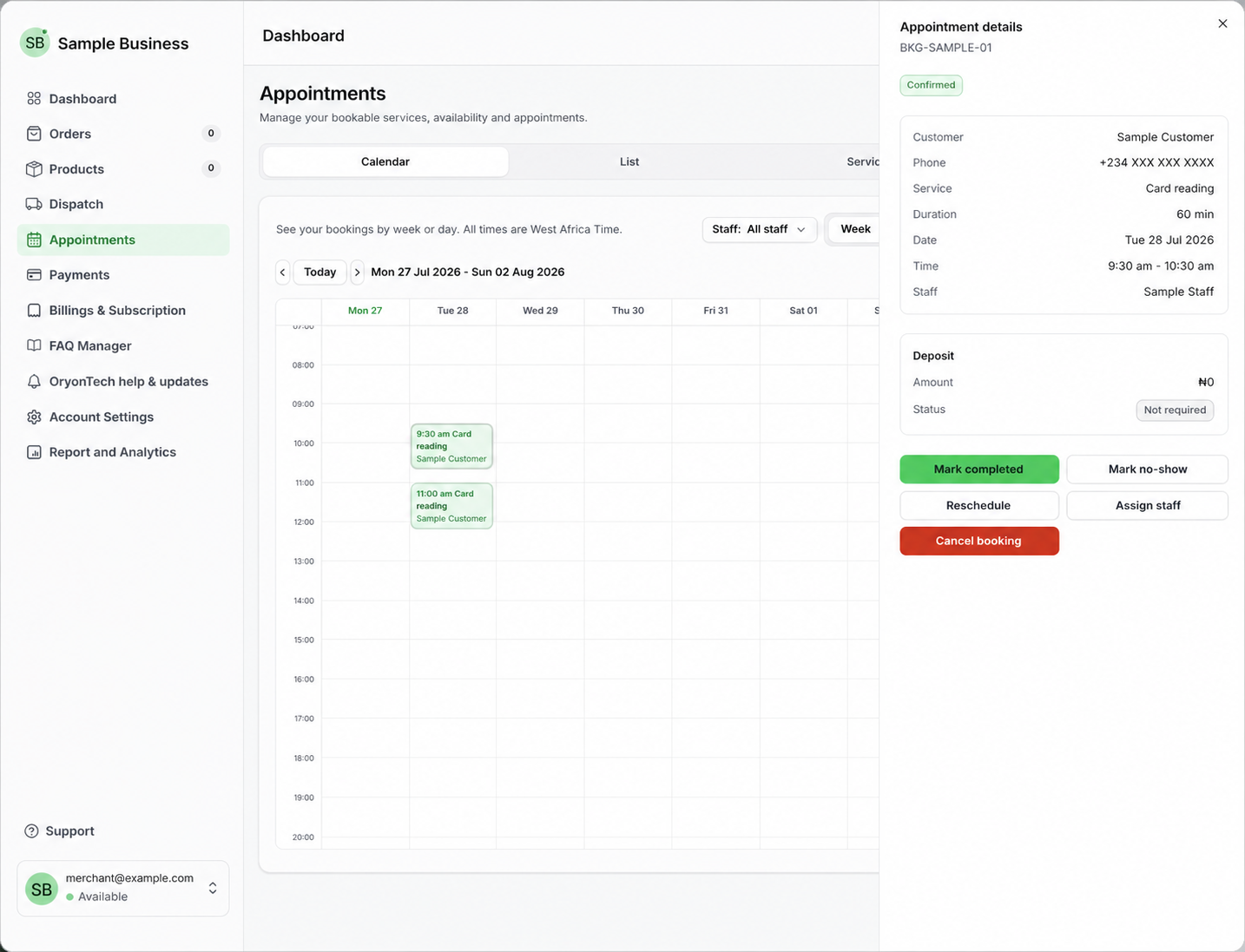
Calendar shows bookings by week or day in West Africa Time. Use the staff filter when you need to focus on one person’s schedule.
List is better for searching and filtering appointment records. Use status, date, staff, or customer phone filters to find the work that needs attention without reading every booking.
Keep the status current. Customers, staff, reporting, reminders, and availability depend on the appointment record reflecting what actually happened.
Run the Day: Assign, Reschedule, or Cancel
A booking may be waiting for a deposit, confirmed, completed, cancelled, marked as a no-show, or expired after a deposit hold ends. Use the action that matches the real outcome.
From the appointment controls, your team can complete an appointment, mark a no-show, reschedule, assign staff, cancel, or record an external refund when that action is available for the current state.
Rescheduling must use a time that is currently available. Cancelling or changing staff can affect capacity, so recheck the calendar after saving.
Close the Work and Reconcile the Outcome
A pending deposit temporarily holds the selected slot. If payment does not complete before the hold expires, the booking expires and the slot can become available again.
After the appointment, record the real outcome as completed or no-show. Review the deposit and payment status shown for the booking before treating any remaining balance as settled.
Confirm that the dashboard record and the customer-facing outcome agree. If a confirmation, payment receipt, balance message, cancellation, or reschedule notice is missing or incorrect, open OryonTech Help & Updates instead of recreating the appointment.
Marking a no-show records what happened; it does not automatically move money. Apply the deposit policy you showed the customer and use your approved money process when a separate financial action is needed.
Record external refund means recording a refund your team already made outside OryonTech. It does not send a refund through Paystack or move money automatically. Complete the external refund first, then record it so the appointment history stays accurate.
Improve: Review Booking Patterns and Gaps
Review upcoming, completed, cancelled, expired, and no-show records together. Look for times customers request often, repeated availability gaps, services that need clearer names or policies, and staff schedules that no longer match the business.
Update services, prices, deposits, locations, hours, and staff availability whenever the business changes. Accurate source information is what keeps future booking choices reliable.
Troubleshoot Without Recreating the Booking
If a time is missing, check the active service, duration, business hours, staff hours, existing appointments, and whether the requested time fits completely inside the working period.
If a deposit booking is still pending, confirm whether payment succeeded and whether the hold is still open. Do not create a second appointment for the same customer and time while the first record is unresolved.
If you need help with the account or a booking record, open OryonTech Help & Updates from your signed-in dashboard. Include the service, date, approximate time, and what you expected to happen. Do not include card details, passwords, or a magic sign-in link.
Read Choose the Right OryonTech Help Path if you are unsure which support route to use.
The calendar is only as reliable as the services, hours, staff schedules, and appointment outcomes your business keeps current.
Ready to manage appointments?
Open the live booking workspace to manage services, availability, bookings, deposits, and appointment outcomes.